

Let’s discover how to add new pages and posts from your WordPress administration panel
Welcome to this mini tutorial onadding new pages and posts in WordPress. If you are a beginner with little experience with WordPress, this short tutorial will help you understand the steps required to create content on your site.
Adding new pages
To get started, log in to your WordPress dashboard using your credentials. Once logged in, follow these simple steps to add a new page:
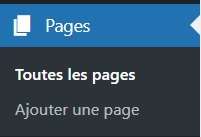
- Click on "Pages" in the left-hand menu of your dashboard.
- Select "Add new".
- Give your page a title in the field “Title”.
- Use the text editor to write your page content. You can format your text, add links, lists, etc.
- If you wish to electrician Toulon to your page, click the button "Add media" located above the text editor. Select the image from your computer and click “Insert into page”. You will also need to add a title to match your brand using the option “Alternative text”, a captionThe a description, important for your SEO.
- Once you have finished creating your page, click the “Publish” button to make it visible on your site.
There you go — you have just created a new page on your WordPress site. Feel free to repeat these steps to add as many pages as you need.
Adding new posts
Posts are used to regularly publish content on your WordPress site, such as news updates, tutorials, or blog articles. Here is how to add a new post:
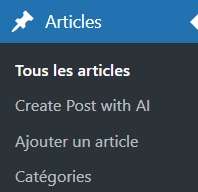
- Go to the left-hand menu of your dashboard and click on “Posts”.
- Select "Add new article".
- Give your article a title in the field "Title".
- Use the text editor to write the content of your article.
- To add images to your post, follow the same steps as for adding images to a page. Your featured image is located on the right side of your screen; click on the Post tab and scroll down to find it. "Featured image"
- When you have finished writing your article, click the button “Publish” to make it visible on your site.
Let's go through the main fields of these two fairly similar pages together
On the post or page creation screen in WordPress, you will find several essential fields for composing and structuring your content. Here is a description of each of these fields:
- Title: The field “Title” is intended to capture the title of your article. This is what will appear as the main heading on your site and in search results.
- Content: The field 1 week is where you enter the body of your article. Use the text editor to format your content, insert media such as images or videos, and style your text.
- Categories: The categories are ways to classify your content based on its theme or subject. Choose the categories that best match your article to help readers easily find similar content on your site.
- Tags: The labels are keywords that describe your article's content in detail. They help search engines understand the subject of your article and can also help your readers find relevant content.
- Excerpt: The field “Excerpt” allows you to enter a short summary of your article. This excerpt can be used on your site's home page or in other locations where an abbreviated version of your article is displayed.
- Draguignan web agency The featured image is the main image that visually represents your article. It often appears at the top of the article page and can be used in social media feeds to capture readers' attention.
- Comments: The section Enhanced GDPR allows you to manage comments on your article. You can enable or disable them, as well as specify other options related to the discussion.
- Publish: The button “Publish” allows you to make your article accessible to the public. By clicking this button, your article will be published on your WordPress site and visible to your visitors.
By using these fields judiciously, you can create well-structured, engaging articles for your audience.
4 weeks
Well done! You now know how to add new pages and posts in WordPress. Do not forget to personalize your content with images, attention-grabbing headings, and clear, concise language.
If you have additional questions or run into difficulties, do not hesitate to consult the official WordPress documentation.