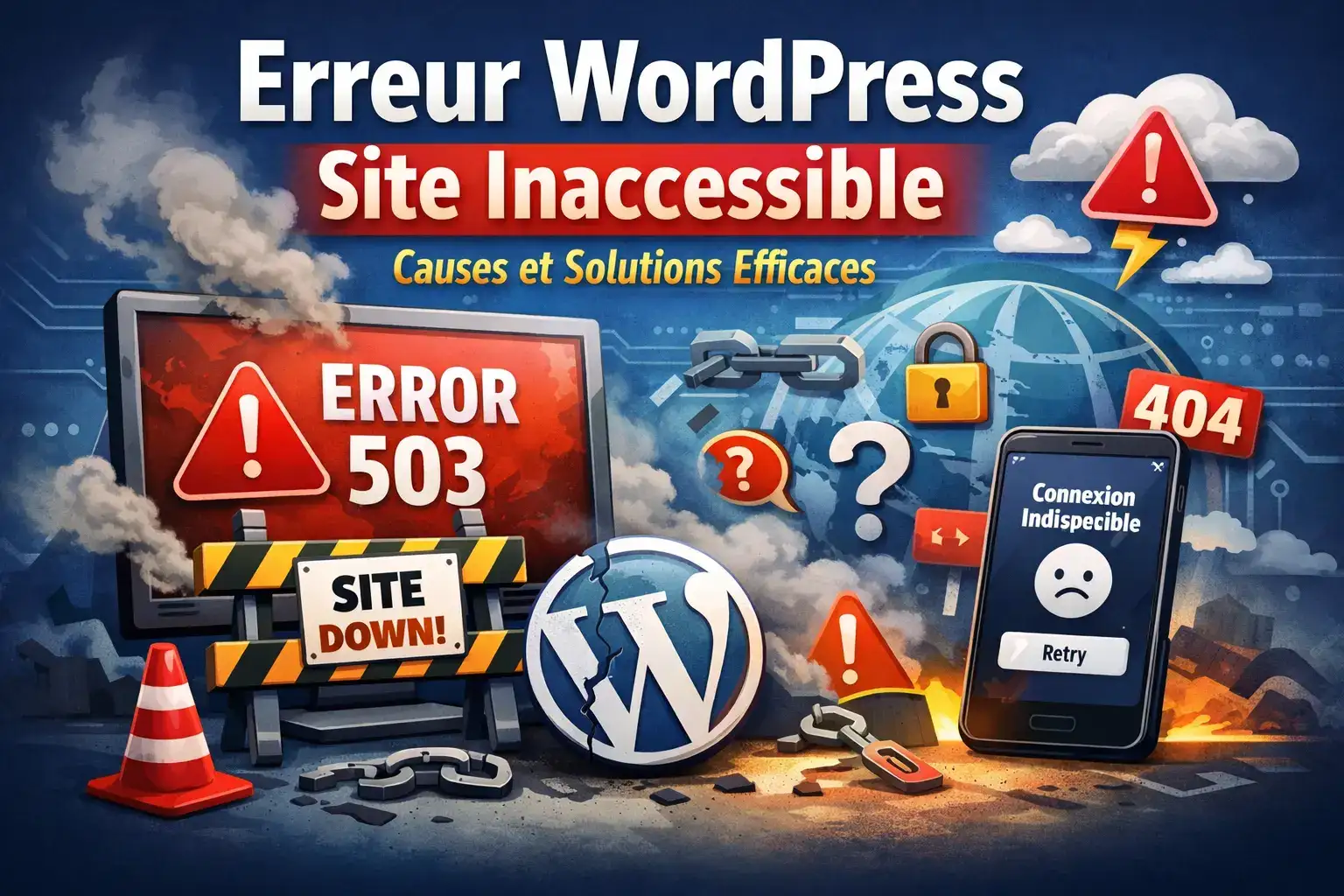
The WordPress site inaccessible error is a common problem that prevents access to your site or its administration.
Here you will find concrete, fast solutions to identify the cause and repair your site, with clear steps tailored to entrepreneurs, small businesses, bloggers, and webmasters.
We will cover the problem definition, common causes, diagnostic methods, step-by-step solutions, and best practices for avoiding these errors.
- Understanding common error messages
- Quickly identify the cause without advanced technical skills
- Applying effective solutions step by step
- Knowing when to call in a professional

To move fast and get it right, start by clarifying the objective, then apply a simple step-by-step method.
- Define the actual need
- List the constraints
- Apply the safest solution
- Check the result
What is the WordPress inaccessible site error?
Simple definition
An inaccessible WordPress site means that neither visitors nor administrators can access the content or the dashboard.
Importance for you
This error directly impacts your online visibility, revenue, and credibility.
Quick examples
- Critical WordPress error displayed on screen
- Blank screen with no message (White Screen of Death)
- We will return to the Tabs
- Site offline or page inaccessible
Why choose appropriate solutions to fix this error?
Advantages
- Fast repair to limit traffic loss
- Prevention of recurring errors
- Optimizing site stability and security
- Building trust with your visitors
Who is this for?
This approach is aimed at entrepreneurs, SMEs, bloggers, developers, and webmasters looking to maintain a reliable and high-performing site.
Possible alternatives
- Calling on WordPress technical support
- Use an outsourced maintenance service
- Hire a specialized developer
- Migrating to another platform (less recommended)
How do I identify and fix an inaccessible WordPress site error?
Time needed: + €290 ex-VAT
- "Content"
Define the objective and expected outcome in one sentence.
- Prepare
Gather the necessary access credentials, backups, and information.
- Apply
Perform one action at a time (minimal correction).
- Verify
Immediately check that everything is working correctly.
- Stabilize
Document and monitor to prevent recurrence.
Diagnostic criteria (table)
| Error type | Possible cause | Recommended solution |
|---|---|---|
| Error 500 | Server overload, corrupted .htaccess, plugin | Check logs, regenerate .htaccess, deactivate plugins, increase memory_limit |
| 8 to 10 times | Fatal PHP error, memory limit, broken theme | Enable WP_DEBUG, increase memory, test the default theme, disable plugins |
| October 18, 2023 | Incompatible plugin/theme, broken update, PHP | Recovery mode, debug.log logs, plugin/theme rollback, check PHP version |
| Plugin issue | Read a complementary article | Rename wp-content/plugins, reactivate one by one, delete the culprit |
| Corrupted file | Plugin/theme conflict, PHP error, server limit | Disable plugins, test default theme, enable debug mode, check logs |
Practical advice
Best practices
- Create a site in Staging
- Test after each change
- Back up before making changes
- Document what has been done
Errors to avoid
- download your logo
- Ignore error signals
- Clear and compelling message
- Copy-pasting without understanding
- Deactivate plugins one by one via FTP
- Test with a default WordPress theme
- Enable debug mode to display errors
- Check the allocated PHP memory
- Control the configuration of the .htaccess file
Common mistakes to avoid
- Not backing up before making changes
- Modifying files without precautions
- Ignore displayed error messages
- Updating plugins and themes without testing
- Neglecting insufficient PHP memory
Checklist
Worth knowing (advanced cases)
If the simplest solution is not enough, return to fundamentals: diagnose, isolate the cause, then apply the minimal fix.
- Precisely identify the symptom
- Isolate the root cause (plugins / theme / server)
- Apply a minimal correction
- Validate and monitor
- Back up your site before any intervention
- Impact on Google ranking
- Switch the active theme to a default theme
- Enable WordPress debug mode
- Check and restore the .htaccess file
- Monitoring the database and PHP memory
- Restore a clean backup if necessary
Where to find help troubleshooting your WordPress site?
Vendors and solutions
You can call on an independent WordPress expert developer, a specialized agency, or a professional WordPress maintenance service.
Budget to plan for
The cost varies depending on the complexity of the issue, from €50 for a simple fix to several hundred euros for a full repair.
Geographic targeting
Prefer a local provider in France for better responsiveness and a clear understanding of specific constraints.
Questions to ask
- What is your experience with WordPress troubleshooting?
- Do you offer a guarantee on your work?
- In-Depth Keyword Analysis
- Do you offer follow-up or maintenance after a repair?
Key takeaway
Keep it simple: one backup, one change at a time, and an immediate check. It is the most reliable method.
Iliade Digital
Quick summary
The WordPress "site inaccessible" error can have multiple causes, often related to plugins, themes, memory, or server configuration.
December 3, 2023
Follow the diagnostic and repair checklist or contact an expert for fast, safe troubleshooting.
FAQ on the WordPress inaccessible site
This is an issue preventing access to the site or its administration.
By deactivating plugins and themes via FTP and enabling debug mode.
Test a default theme and check PHP memory.
Enable debug mode and check the server configuration.
If manual corrections do not resolve the issue.
Yes, by applying best practices and keeping the site up to date.
It depends on your skills, but a professional guarantees a safe repair.
Loss of traffic, drop in search rankings, and damage to credibility.
These frequently asked questions help you better understand and anticipate WordPress site inaccessible errors.